After completing this lesson, you’ll be able to:
In this lesson, you will:
After completing this lesson, you’ll be able to:
In this lesson, you will:
The FME Flow Data Streaming transformation service functions similarly to the Data Download service. However, the Data Streaming service immediately streams a workspace's output data to the user's browser rather than as a downloadable zip file. Again, the Writers selected for the Data Streaming service do not write the data in the file location you set in the writer; instead, FME Flow presents the data to the user in the browser upon job completion.
Data Streaming output can include workspaces that write HTML, PNG, KML, GeoRSS, GeoJSON, PDF, and others. If the format is not compatible with streaming in the browser, the data automatically downloads as a file. If there are multiple output files, FME Flow will package them into a zip file that downloads immediately. The user does not have to click a download link, as with the Data Download service.
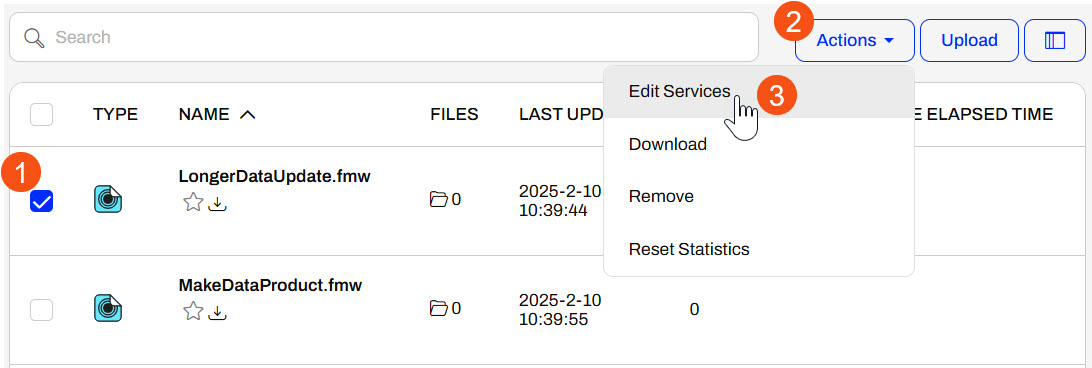
To change a workspace's services on FME Flow, navigate to Workspaces and open the repository that contains the workspace. Select the workspace, expand the Actions button, and select Edit Services.
The Configure Services window opens, and you can toggle services on or off for the workspaces.
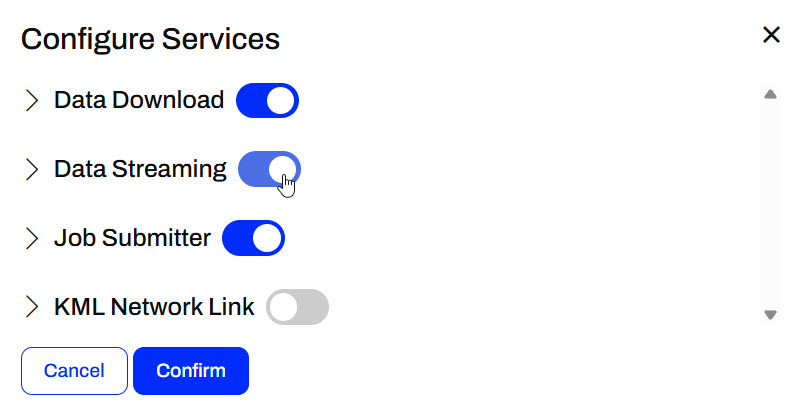
You should expand the service and select which writer (s) to include in the resulting output. You may also optionally specify reader feature types to receive HTTP content instead of reading the dataset.
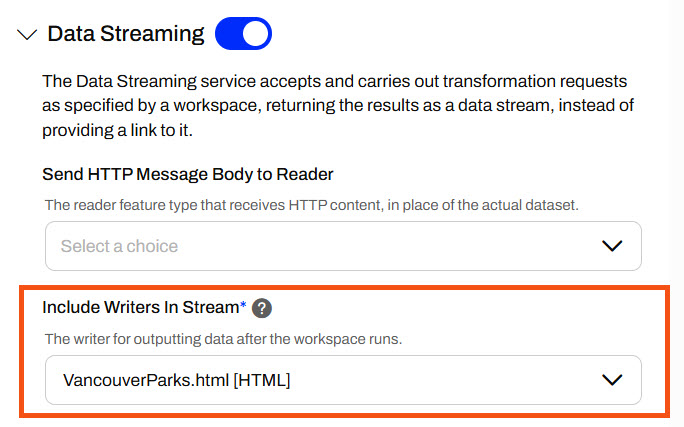
When working with Data Download or Data Streaming services, you don't need to include all writers from your workspace — you can select just one writer to participate in the service. Any writers you leave out will behave like the Job Submitter service, writing their data directly to the output location specified in the writer parameters. Only the writer you've included in the service will deliver its output through Data Download or Data Streaming. Keep in mind that the Data Streaming service can only stream a single file back to you at a time, so if you include multiple writers, FME Flow will automatically group the output into a zip file and download it instead.

Sven continues working on his Vancouver Parks and Neighborhoods workflow and, after using the Data Download service, he thinks the Data Streaming service might better suit his workflow. He can immediately stream the HTML report back to the user and write the KML files to a file location.
Currently, the workspace's registered services are only Data Download and Job Submitter. Sven doesn't want to repeat the publishing process to add the Data Streaming service to the workspace's registered services. Instead, Sven would like to change the workspace's services directly on FME Flow.
For this exercise, follow the steps below to configure Sven's workspace to use the Data Streaming service on FME Flow.
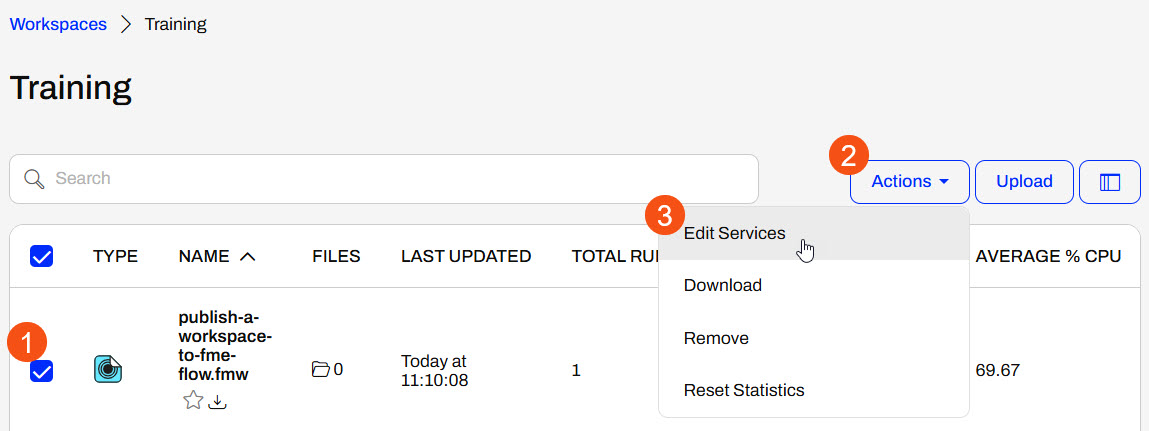
On FME Flow, open Workspaces, then select the Training repository. Check the box to select the workspace, open the Actions drop-down menu, and select Edit Services.
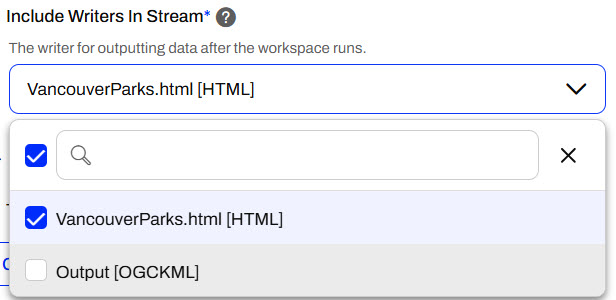
Toggle on the Data Streaming service, then expand its options by clicking the arrow. All writers in the workspace are included in the stream by default. Since Sven only wants to stream the HTML report back to the user running the workspace, deselect the Output KML writer from the list.
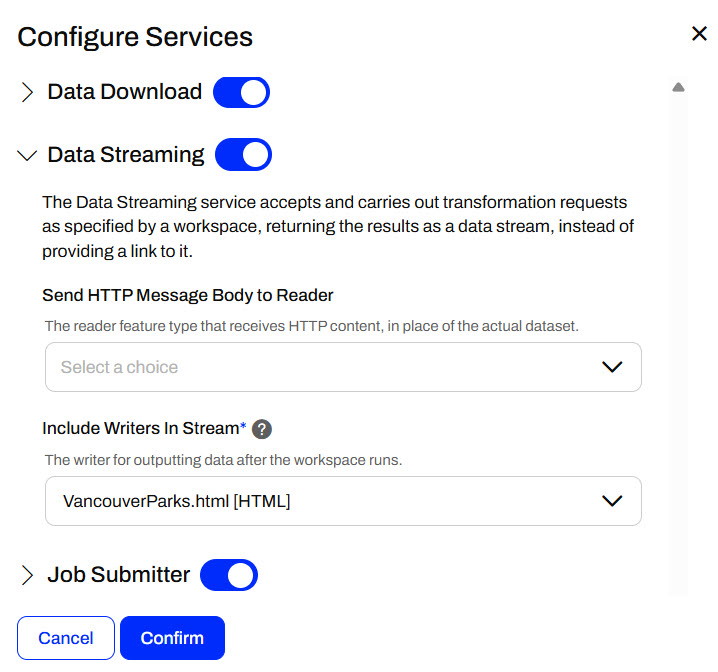
Your workspace services look like the following image, then click Confirm to close the Configure Services window.
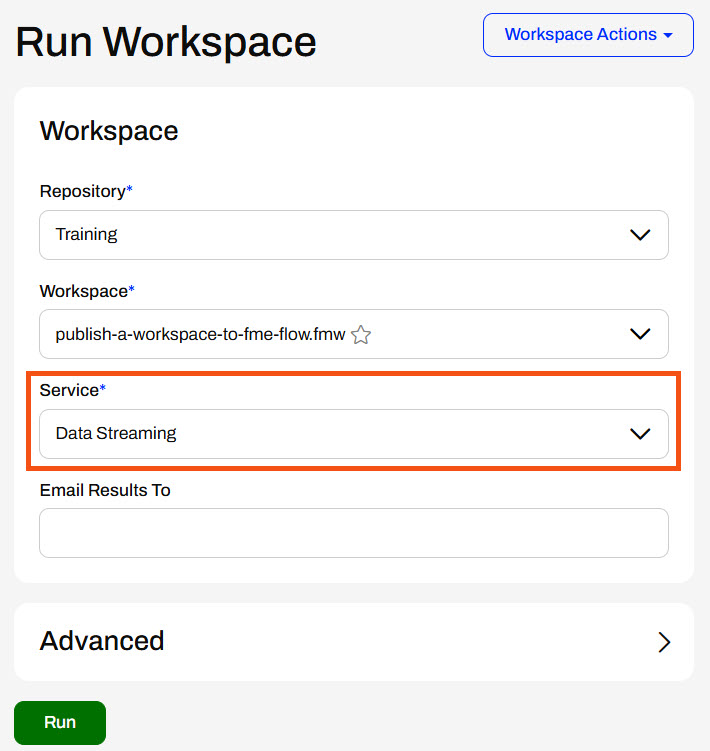
Back on the Workspaces page, click the workspace to open it to the Run Workspace page. Select the Data Streaming service and click Run.
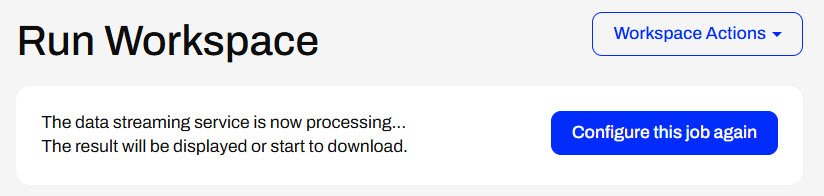
As the workspace runs on FME Flow, FME Flow displays a dialog stating that the data streaming service is processing the workspace.
And once the translation is complete, FME Flow streams the HTML report back to you in the browser. It writes the KML files to C:\FMEData\Output, as specified by the writer.
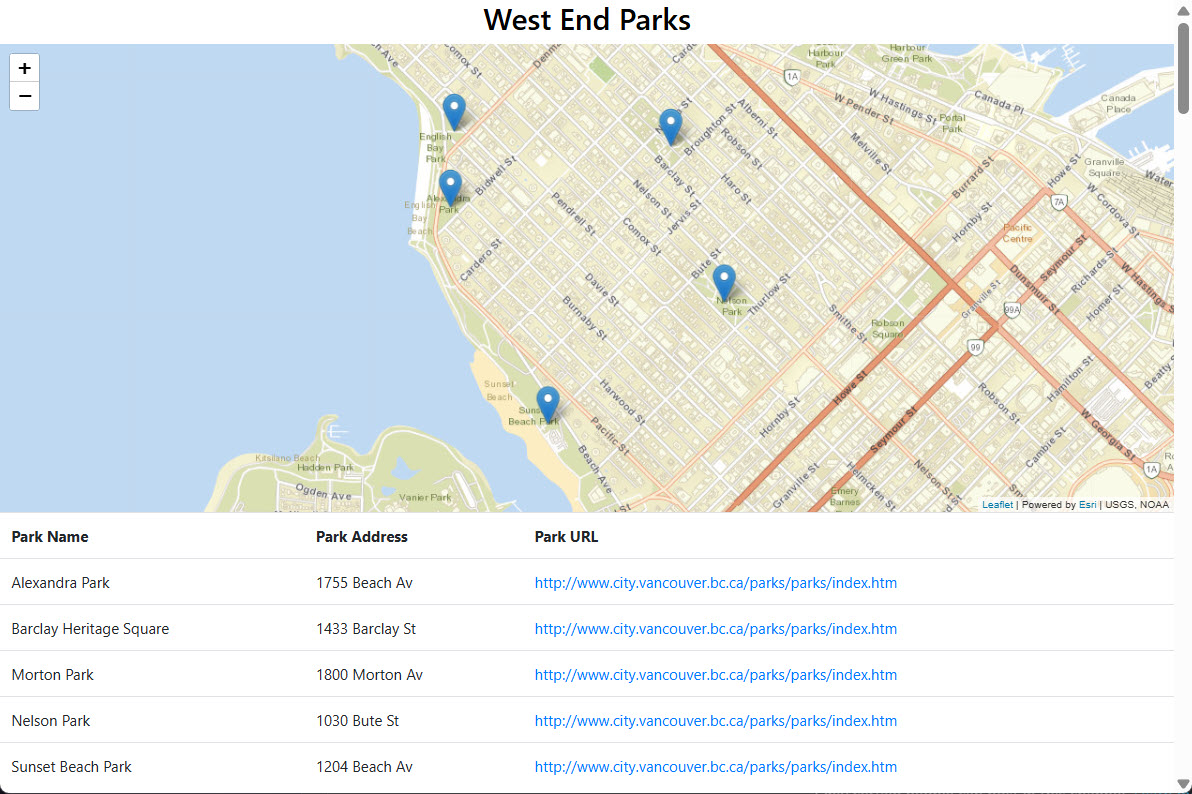
The HTML report separates Parks by neighborhood and displays a map and a table for each neighborhood. The maps are interactive, so you can click on parks and zoom in or out from each park's location. Each park record in the table includes a link to the Park information on the City of Vancouver website. Sven knows this will be very useful for his colleagues to quickly access summary information for the Parks!
This HTML report is created using the HTML Report Generator. See How to Customize HTML Reports for a tutorial on creating and customizing HTML reports.
The FME Flow Data Streaming transformation service functions similarly to the Data Download service. However, the Data Streaming service immediately streams a workspace's output data to the user's browser rather than as a downloadable zip file. Again, the Writers selected for the Data Streaming service do not write the data in the file location you set in the writer; instead, FME Flow presents the data to the user in the browser upon job completion.
Data Streaming output can include workspaces that write HTML, PNG, KML, GeoRSS, GeoJSON, PDF, and others. If the format is not compatible with streaming in the browser, the data automatically downloads as a file. If there are multiple output files, FME Flow will package them into a zip file that downloads immediately. The user does not have to click a download link, as with the Data Download service.
To change a workspace's services on FME Flow, navigate to Workspaces and open the repository that contains the workspace. Select the workspace, expand the Actions button, and select Edit Services.
The Configure Services window opens, and you can toggle services on or off for the workspaces.
You should expand the service and select which writer (s) to include in the resulting output. You may also optionally specify reader feature types to receive HTTP content instead of reading the dataset.
When working with Data Download or Data Streaming services, you don't need to include all writers from your workspace — you can select just one writer to participate in the service. Any writers you leave out will behave like the Job Submitter service, writing their data directly to the output location specified in the writer parameters. Only the writer you've included in the service will deliver its output through Data Download or Data Streaming. Keep in mind that the Data Streaming service can only stream a single file back to you at a time, so if you include multiple writers, FME Flow will automatically group the output into a zip file and download it instead.
Sven continues working on his Vancouver Parks and Neighborhoods workflow and, after using the Data Download service, he thinks the Data Streaming service might better suit his workflow. He can immediately stream the HTML report back to the user and write the KML files to a file location.
Currently, the workspace's registered services are only Data Download and Job Submitter. Sven doesn't want to repeat the publishing process to add the Data Streaming service to the workspace's registered services. Instead, Sven would like to change the workspace's services directly on FME Flow.
For this exercise, follow the steps below to configure Sven's workspace to use the Data Streaming service on FME Flow.
On FME Flow, open Workspaces, then select the Training repository. Check the box to select the workspace, open the Actions drop-down menu, and select Edit Services.
Toggle on the Data Streaming service, then expand its options by clicking the arrow. All writers in the workspace are included in the stream by default. Since Sven only wants to stream the HTML report back to the user running the workspace, deselect the Output KML writer from the list.
Your workspace services look like the following image, then click Confirm to close the Configure Services window.
Back on the Workspaces page, click the workspace to open it to the Run Workspace page. Select the Data Streaming service and click Run.
As the workspace runs on FME Flow, FME Flow displays a dialog stating that the data streaming service is processing the workspace.
And once the translation is complete, FME Flow streams the HTML report back to you in the browser. It writes the KML files to C:\FMEData\Output, as specified by the writer.
The HTML report separates Parks by neighborhood and displays a map and a table for each neighborhood. The maps are interactive, so you can click on parks and zoom in or out from each park's location. Each park record in the table includes a link to the Park information on the City of Vancouver website. Sven knows this will be very useful for his colleagues to quickly access summary information for the Parks!
This HTML report is created using the HTML Report Generator. See How to Customize HTML Reports for a tutorial on creating and customizing HTML reports.
